
Superscript Generator: What It Is and How to Use it
- CASE CONVERTER TOOLS

- Apr 11, 2025
- 4 min read

Ever seen text that floats above the line like this —x² or H₂O? That's called superscript.
According to Wikipedia, a superscript is a character set slightly above the normal line of type, typically smaller than the rest of the text. It's commonly used in mathematical expressions, chemical formulas, and footnotes.
I use it all the time in math formulas, science notes, and sometimes to style my usernames. But typing superscript isn’t always simple. Not every keyboard has a quick way to do it.
That's where a superscript generator comes in. lets me turn normal text into superscript with just a few licks. No extra apps. No code. Just type, copy, and paste.
In this guide. I'll show you what a superscript is, how to use generator, and how to type it fast using shortcuts.
What Is a Superscript?

A superscript is a small character set just above the normal line of text. It's not just for show-it means something.
For Example:
x² shows a squared number.
H₂O uses it to label atoms.
1st uses “st” as a tiny letter to mark the position.
As you know, superscripts are used in math, science, and even in citations like this¹. They're different from subscripts, which sit below the text line.
Want to sound smart in your notes or clean up a formula? Superscripts help you do that—fast.
What Is a Superscript Generator?

A superscript generator is a simple tool that changes normal text into superscript. I use it when I need small, raised characters without messing with Word settings or keyboard shortcuts.
You just type your text, and it gives you the superscript version. Then, copy and paste it anywhere—social media, documents, even emails.
Also, it works right in your browser. No installs. No signups. Just a straight-up text conversion.
If you’re dealing with math or science or want to make a name stand out, this tool saves time. It works with superscript letters, numbers, and symbols.
How to Use a Superscript Generator

Using a superscript generator is straightforward. Herr's how I do it:
Open the Tool: I navigate to any subscription tool online.
Enter Your Text: In the input box, I type or paste the text I want to convert.
View the Superscript Output: The tool automatically displays the superscript version of my text below the input box.
Copy the Superscript Text: I click the "Copy" button next to the output to copy the superscript text to my clipboard.
Paste Where Needed: I paste the superscript text into my desired application—be it a document, social media post, or email.
This tool supports a range of superscript characters, including numbers (¹²³), letters (ᵃᵇᶜ), and symbols. It's particularly useful for creating mathematical notations, footnotes, or stylized text.
Additionally, the tool is browser-based, so there's no need for downloads or installations. It works seamlessly across devices, making it convenient whether I'm on a computer, tablet, or smartphone.
Superscript Symbols You Can Create
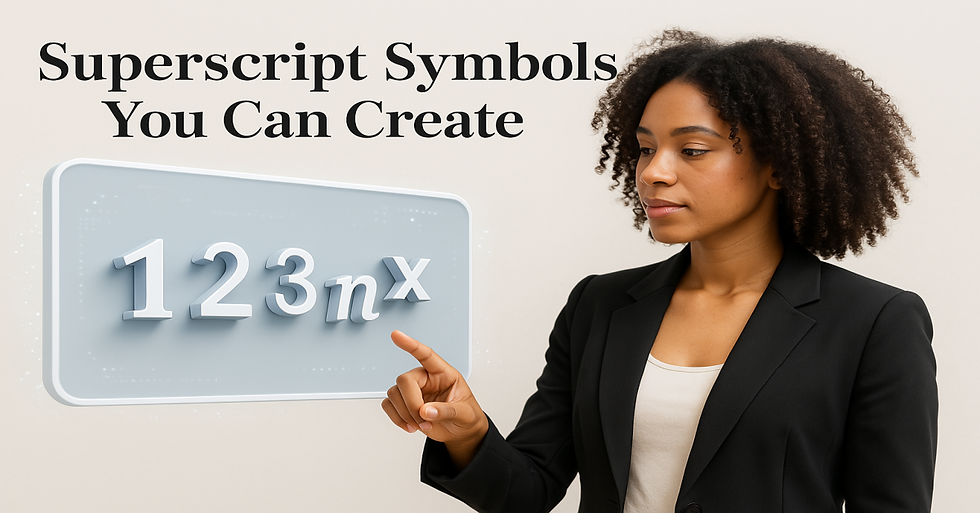
The superscript generator doesn’t just change letters. It covers numbers and symbols too.
Here’s what I usually get from it:
Superscript Numbers: ¹²³⁴⁵⁶⁷⁸⁹⁰
Superscript Letters: ᵃ ᵇ ᶜ ᵈ ᵉ ᶠ ᵍ … all the way to ᶻ
Caps in Superscript: ᴬ ᴮ ᴰ ᴱ ᴳ … (some capital letters are supported)
Math & Special Characters: ⁺ ⁻ ⁼ ⁽ ⁾ ⁿ
Not every letter or symbol has a Unicode superscript version. But the generator gives you the best matches it can find.
Also, these characters work in most places—Google Docs, Word, Instagram bios, and even YouTube comments. No formatting is needed.
Superscript Name Generator
I've used the superscript generator to tweak usernames and display names. It gives them a clean, styled look without needing emojis or symbols.
Here's how it works:
Type your name in the box.
The tool turns it in into superscript instantly.
Copy and paste it into your bio, profile name, or signature.
Example:
Regular: Adonis
Superscript: ᵃᵈᵒⁿⁱˢ
It’s simple. Also, it helps your name stand out in apps where everyone looks the same.
Keep in mind that not all platforms support every superscript character. I always test it before saving changes on any profile.
Superscript Shortcuts (Word, Google Docs, Keyboard)

Sometimes, I skip the generator and use keyboard shortcuts. It's quicker when I'm already working in Word or Google Docs.
Here’s what I use:
Word (Windows)
Shortcut: Ctrl + Shift + = Highlight the text, then press those keys. Done.
Word (Mac)
Shortcut: Command + Shift + + Same idea—highlight, then shortcut.
Google Docs
Menu path: Format > Text > Superscript No shortcut by default, but it’s easy to find.
Also, if I’m using plain text and just need the superscript ² or ³, I can use Alt codes:
Alt Codes (Windows Only)
²: Alt + 0178
³: Alt + 0179
Hold Alt, type the code using the number pad.
These shortcuts save time. But when I want more control—like styling a name—I still go back to the generator.
Subscript vs Superscript Generator

-Both subscript and superscript tools change how text looks. But they do opposite things.
Superscript makes characters float above the line: x², H²O
Subscript pushes them below: CO₂, H₂O
I use superscript for math, units, and footnotes. I use subscript for chemical formulas or when I need smaller text below the line.
Most generators, like the one I use at caseconverter.tools, offer both options. I just pick what I need, up or down, and copy the output.
Also, both styles work the same way. Type, convert, copy, paste. That’s it.
Final Thoughts
Superscripts aren’t just for math nerds or scientists. I use them to format text, build formulas, and even style names.
With a tool like the superscript generator, it takes seconds. No extra software is needed. No formatting issues.
Also, I can use keyboard shortcuts when I’m working in Word or Docs. But when I want clean superscript text that works anywhere, I always go back to the generator.


Comments